


Car Play Connect Auto Sync
4.6105.00 Reviews
App Specs
- Version
- 2.4
- Updated On
- License
- Free
- Downloads
- 1,000,000+
- Developer
- MONIQ TAP., CO LTD
- Categories
- Auto & Vehicles
- Platform
- Android
Screenshots
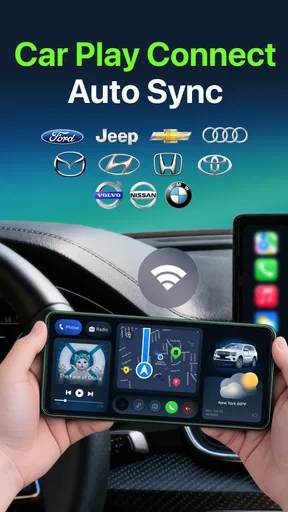
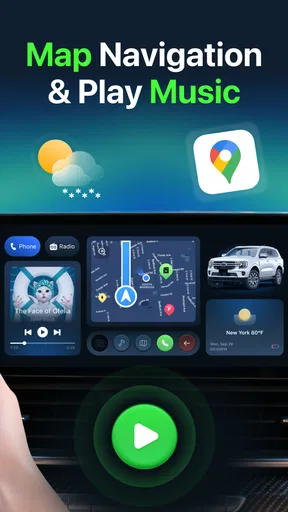
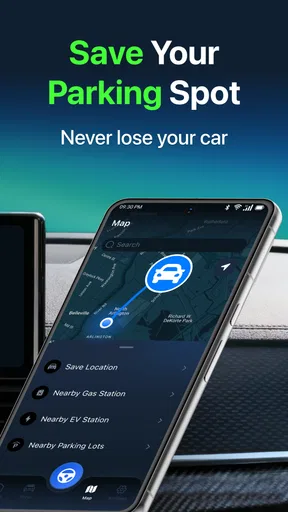
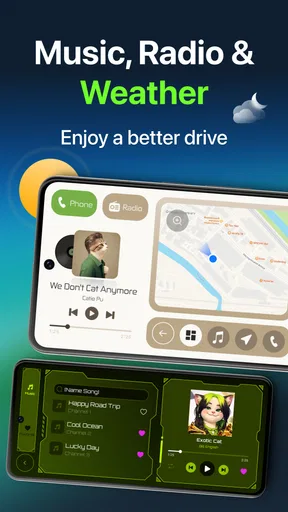
 Analysis by AppCompare
I’d start with one expectation that makes the rest of the experience easier to judge: Car Play Auto Sync For Android is an Android Auto & Vehicles app built around connecting a phone to a car display. That sounds simple, but the result depends on more than the app itself. The phone, the car’s built-in system, the connection method, and the apps you want to use all have to cooperate. In my view, it makes sense to try it when your car already supports a compatible phone connection and you want a more convenient dashboard routine—not as a way to add capabilities your vehicle does not have.
Where the first connection can go wrong
Pairing a phone with a car can feel like one step, yet several small mismatches can interrupt it. Bluetooth may be paired for calls while the dashboard connection still needs a separate action; a USB cable may charge the phone without carrying the kind of data the car expects; or the car may be waiting for a confirmation on its own screen. Those are ordinary connection hurdles, not proof that the app is broken.
I’d avoid trying to diagnose everything at once. First check whether the phone can connect to the car at all, then see whether the dashboard recognizes the connection, and only after that look at the app’s sync behavior. That order saves time because it separates a basic vehicle or phone connection problem from an app-specific one. If another phone works with the same car, that points toward checking the original phone’s settings; if neither works, the car side deserves attention first.
Check the car and phone before a drive
Before relying on a new setup for a commute, I’d test it while parked. Confirm that the car supports the connection you plan to use, that the phone’s Bluetooth is on when pairing wirelessly, and that any cable connection is secure. If the car offers more than one USB port, try the port intended for phone integration rather than assuming every port does the same job. These are simple checks, but they can prevent a frustrating first attempt when you are already late.
It also helps to keep the test focused. Start with the dashboard connection, then open one navigation or audio app rather than launching several things together. If that works, add the rest of your routine gradually. This gives you a useful baseline: you can tell whether a later problem follows a particular app or appears before you reach that point. I’d also make sure the phone is unlocked when the first connection asks for attention, then keep the car stationary until setup is complete.
Recovering a connection without making the problem worse
If the dashboard stops responding, I wouldn’t repeatedly tap through menus while driving. Pull over safely, then check whether the phone still shows a Bluetooth or cable connection and whether the car has returned to its normal home screen. A clean disconnect and reconnect is a better first attempt than changing several settings at random. If you use a cable, reseat it; if you use Bluetooth, check that the phone has not connected to a different nearby device.
When a restart is needed, restart one side at a time and test again before changing anything else. That makes it easier to see what helped. It’s also sensible to keep a familiar backup ready: know how to use the car’s built-in controls or stop and set navigation on the phone before setting off. A dashboard connection is convenient, but it should never become the only way you can follow a route or manage audio.
Worth Reading Before You Choose

Flipboard Shows What News Apps Must Do Beyond the Feed

Switching to Android Auto Means Rethinking Your Driving Routine

Google Calendar Makes a Crowded Week Easier to Manage

Ludo King Makes the Most of the Minutes Between Plans

Baby Panda World Brings Quick Play to Modern Phones, but Its Game Library Feels Busy

ESPN’s Live Game View Makes Following Close Games Easier
When the app may not be the cause
Connection quality can be affected by the car’s own compatibility, the phone’s current settings, a loose cable, or a competing Bluetooth connection. A delay in a map or music app can also come from that app or its network access rather than from the dashboard link. I’d look at where the failure happens: if the car does not detect the phone, focus on pairing and compatibility; if the dashboard appears but one service misbehaves, check that service separately.
That distinction matters because a dashboard-sync app cannot make every car behave alike. Before installing, I’d check the vehicle’s manual or its built-in phone-connectivity menu and compare that with the connection method you intend to use. If the car does not support the relevant integration, a phone mount and the car’s existing audio connection may be more dependable. That option is less unified, but it is often the sensible choice when the dashboard itself is the limiting factor.
Seamless Integration with Your Car
First things first, the biggest selling point of Car Play Auto Sync For Android is how it integrates your phone with your car's dashboard. Imagine having all your favorite apps available right on your car's display without any fuss. From navigation to music, everything is just a tap away.
The setup is pretty straightforward. Once you download the app and connect your phone via Bluetooth or USB, it automatically syncs with your car's system. It’s like magic! Suddenly, your car’s screen feels like an extension of your phone, and it’s incredibly convenient.
Navigation Made Easy
If you’re anything like me, getting lost is a regular occurrence. With this app, those days are over. The navigation feature is top-notch, providing real-time traffic updates and alternative routes. You can use Google Maps, Waze, or your preferred navigation tool directly from your car’s display. No more fumbling with your phone while trying to keep your eyes on the road.
What’s cool is the voice command function. Just speak your destination, and the app will guide you there. It’s like having a personal co-pilot who never gets tired of answering your questions.
Tune into Your Favorite Beats
We all know that a good playlist is essential for any drive. With this app, you can access Spotify, Apple Music, or any other music platform directly through your car’s system. The sound quality is impressive, and you can easily switch between tracks using your car’s controls. No more distractions trying to find that perfect song on your phone.
Podcasts and audiobooks are also seamlessly integrated. Whether you’re into true crime or self-help, you’ve got endless options to keep you entertained during those long drives.
Keeping You Connected
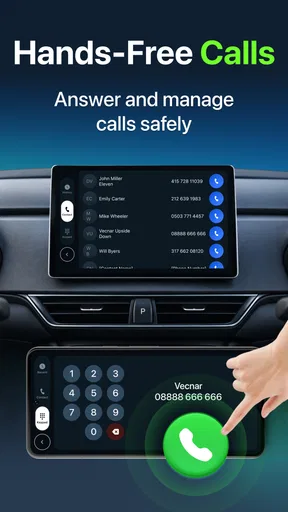
One of the biggest perks of the app is staying connected without taking your eyes off the road. You can make and receive calls, send text messages, and even check your calendar—all hands-free. The voice-to-text feature is pretty accurate, so you won’t have to worry about those awkward autocorrect mishaps.
Plus, notifications from your favorite apps can be customized, so you only get alerts that are truly important while driving. It’s a great way to keep your focus where it should be—on the road.
Customizable Interface
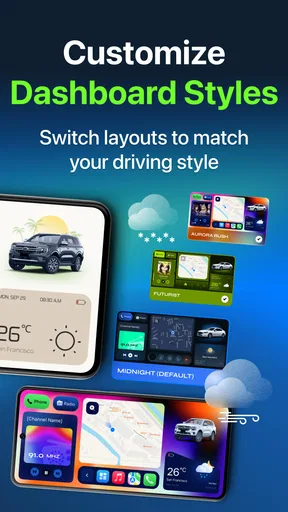
Another aspect I found really appealing is how customizable the interface is. You can rearrange apps, change display themes, and even set shortcuts for your most-used functions. It’s like having a tailor-made dashboard that suits your personal style and needs.
This level of customization ensures that you’re not just stuck with a one-size-fits-all solution. Whether you’re a minimalist or someone who likes lots of information at a glance, this app has got you covered.
Daily routines that make the connection worthwhile
The most convincing use case for me is a repeated short trip: the school run, a familiar commute, or the regular drive to a grocery store. If the phone reconnects predictably, a dashboard view can spare you from mounting and repositioning the phone every time. For a one-off journey, the benefit is smaller; for a routine route, even a modest reduction in fiddling can make the setup feel worthwhile.
For a longer drive, I’d prepare before leaving: choose the route while parked, queue up audio, and check that the car’s controls respond as expected. This is a practical trade-off, not a special feature claim. It reduces the number of decisions you need to make once moving, and it gives you a chance to fall back on the phone or the car’s own system if the connection does not behave.
One useful habit is to keep the dashboard focused on the task at hand. Navigation and audio are enough for most trips; turning the screen into a place to manage every notification can create more distraction than convenience. If the app lets you arrange the display, I’d prioritize the controls you actually use and leave the rest out of your immediate routine. A cleaner layout is more useful than a screen full of shortcuts you rarely need.
Choosing between this, built-in systems, and a phone mount
The usual alternatives solve different problems. A car’s built-in phone integration is the natural choice when it already works reliably and presents the apps you need. A phone mount is often the simplest option in an older vehicle or one without a compatible dashboard connection, especially if you mainly need navigation. A separate sync app is most appealing when the car and phone can already establish the right connection and you want a more unified experience.
I wouldn’t treat these options as interchangeable. A mount keeps the phone visible and avoids depending on a dashboard interface, but it leaves you using the phone’s screen and controls. Built-in integration can be more direct when supported by the vehicle. An app-based route may add convenience, but it also introduces another point to check when something fails. If your existing car system already does the job, switching just for the sake of having another app may not improve your day.
There is also a useful distinction between connection and compatibility. Seeing the phone paired over Bluetooth does not necessarily mean every dashboard function is ready, and a successful dashboard session does not guarantee that every third-party service will act identically. I’d judge the setup by the specific tasks I care about—such as starting navigation or controlling audio—rather than by the fact that the phone appears connected.
Who is likely to benefit, and who should pass
I think the app is best suited to Android users who frequently drive a car with compatible phone-to-dashboard support and want a repeatable way to connect. It is also a reasonable trial for someone who is comfortable checking settings and testing the setup while parked. The app is free to install, while in-app purchases range from $4.99 to $49.99 per item, so I’d explore the basic experience first and consider any purchase only if it clearly addresses a need you have.
I’d be more cautious if you rarely drive, rely on a vehicle with limited phone integration, or expect an app to turn an unsupported screen into a fully compatible one. It is also not the right answer if you want a setup that needs no troubleshooting at all: wireless connections can be convenient, but a cable or a simpler phone-mount arrangement may be easier to reason about when reliability matters more than a unified display.
The practical questions I’d settle before committing are straightforward: does the car support the connection method you intend to use, does the dashboard recognize the phone, and do your essential navigation and audio controls work while parked? If one of those answers is no, resolve that before building a driving routine around the app. You do not need to test every possible app on day one; confirming a few important tasks gives a much clearer picture of whether it fits your car.
What its store details mean in practice
MONIQ TAP., CO LTD publishes this free Auto & Vehicles app. It has a 4.5 average from around 1.4 thousand ratings, with over 100 thousand installs, and it is rated for Everyone. Those figures suggest that plenty of Android users have tried it, but they cannot tell me whether it will connect to a particular make of car. Compatibility in your own vehicle is still the decision point.
The release date is January 9, 2026, and the current version is 1.8; it requires Android 8.0 or later. I’d check that your phone meets the operating-system requirement before installing, then test the app with your own car rather than assuming another driver’s experience will transfer. The stated age rating makes it broadly suitable for general audiences, though that is separate from whether its driving workflow suits your needs.
Final Thoughts
Overall, Car Play Auto Sync For Android is a fantastic tool for anyone looking to enhance their driving experience. It brings a whole new level of convenience and entertainment to the table, making every journey more enjoyable. From seamless navigation to staying connected, this app has truly impressed me.
If you’re an Android user looking to make the most out of your car’s capabilities, I’d say give this app a shot. You’ll wonder how you ever drove without it. Safe travels!
My recommendation is a little more specific: try it if your car already offers the kind of phone integration you want, and judge it by a calm, parked setup test followed by a familiar route. Keep a backup navigation option in mind, and do not troubleshoot while driving. If the connection proves consistent, the convenience can earn its place in your routine; if the vehicle is the obstacle, a built-in system or phone mount is the more sensible answer.
Pros
- Easy setup with intuitive interface.
- Seamless integration with Android devices.
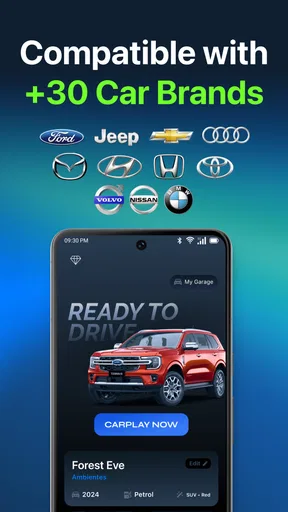
- Supports a wide range of car models.
- Regular updates enhance functionality.
- Customizable dashboard options.
Cons
- Some features require premium upgrade.
- Occasional connectivity issues reported.
- Limited support for older Android versions.
- Battery drain can be noticeable.
- UI can lag on older devices.
FAQs for Car Play Connect Auto Sync
What is Car Play Auto Sync for Android?
Car Play Auto Sync for Android is an application designed to integrate your Android device with your car's infotainment system. It allows seamless access to your phone’s apps, music, and navigation tools directly from your car’s dashboard, enhancing your driving experience by providing hands-free control and easy accessibility.
Is Car Play Auto Sync compatible with all Android devices?
Car Play Auto Sync is compatible with most Android devices running Android 5.0 (Lollipop) and above. However, it's essential to check the specific requirements and compatibility with your car's infotainment system to ensure a smooth integration. Some features may vary depending on the car model and Android version.
Does Car Play Auto Sync require a wired connection?
Car Play Auto Sync can work both with a wired and wireless connection, depending on your car's capabilities. Newer models often support wireless connectivity, while older systems may require a USB connection. Always verify your car’s specifications to determine the best setup for your needs.
What features does Car Play Auto Sync offer?
Car Play Auto Sync offers a variety of features, including access to navigation apps like Google Maps, music streaming services, hands-free calling, and messaging. It also supports voice commands through Google Assistant, allowing you to keep your focus on the road while using your favorite apps.
Is Car Play Auto Sync secure to use while driving?
Yes, Car Play Auto Sync is designed with safety in mind. It provides a user-friendly interface and supports voice commands to minimize distractions. However, it’s crucial to always prioritize road safety and use the app responsibly, avoiding any unnecessary interactions while driving.


